Your Z System images.
On your mobile device.
Simply and Quickly.

byThom ZConnect connects your Nikon Z System camera to your iPhone or iPad. Download the images you want, then send them straight on to Photos, Files, Messages, Mail, or anything else that can live in the Share icon.
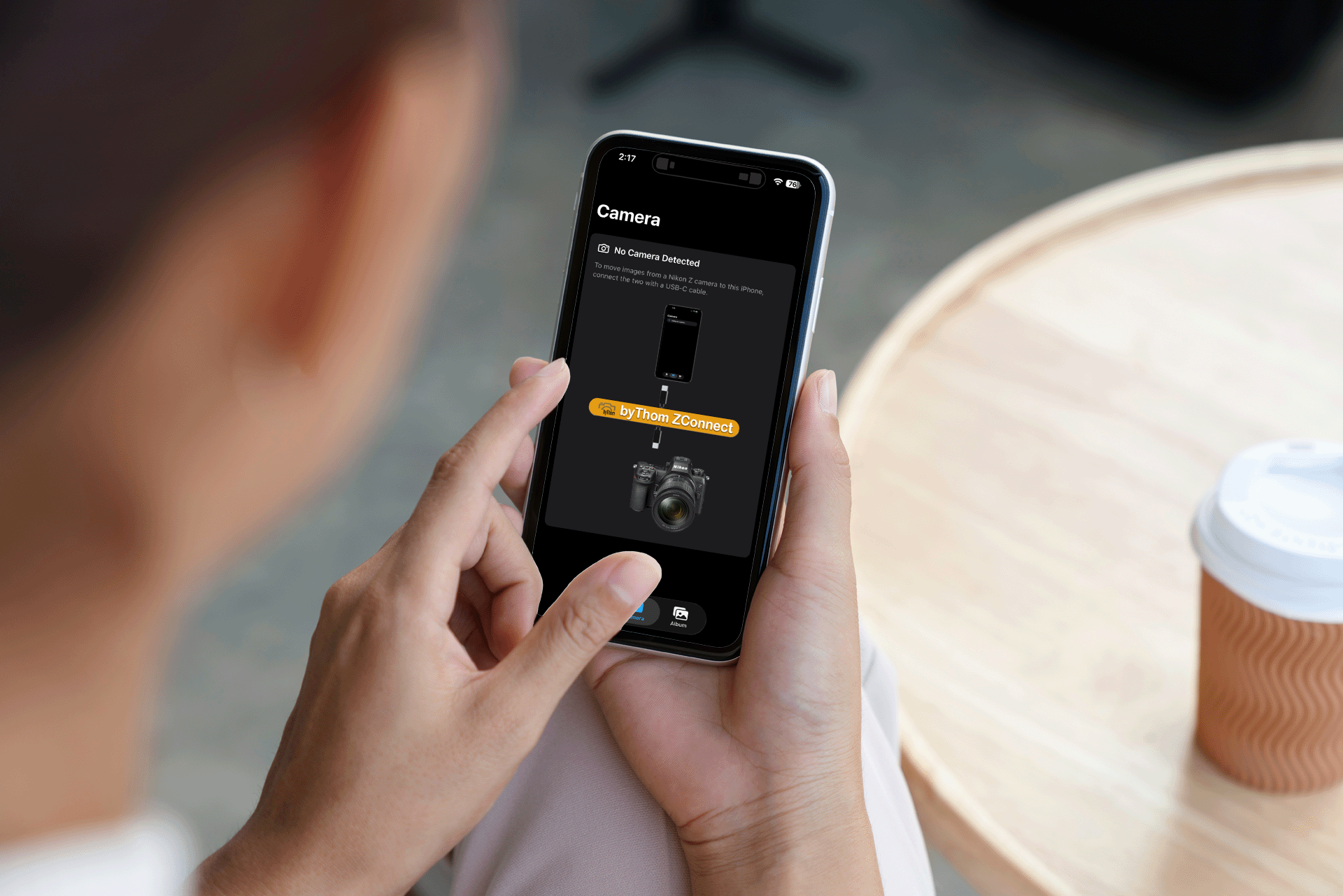
From camera to the world in four simple steps

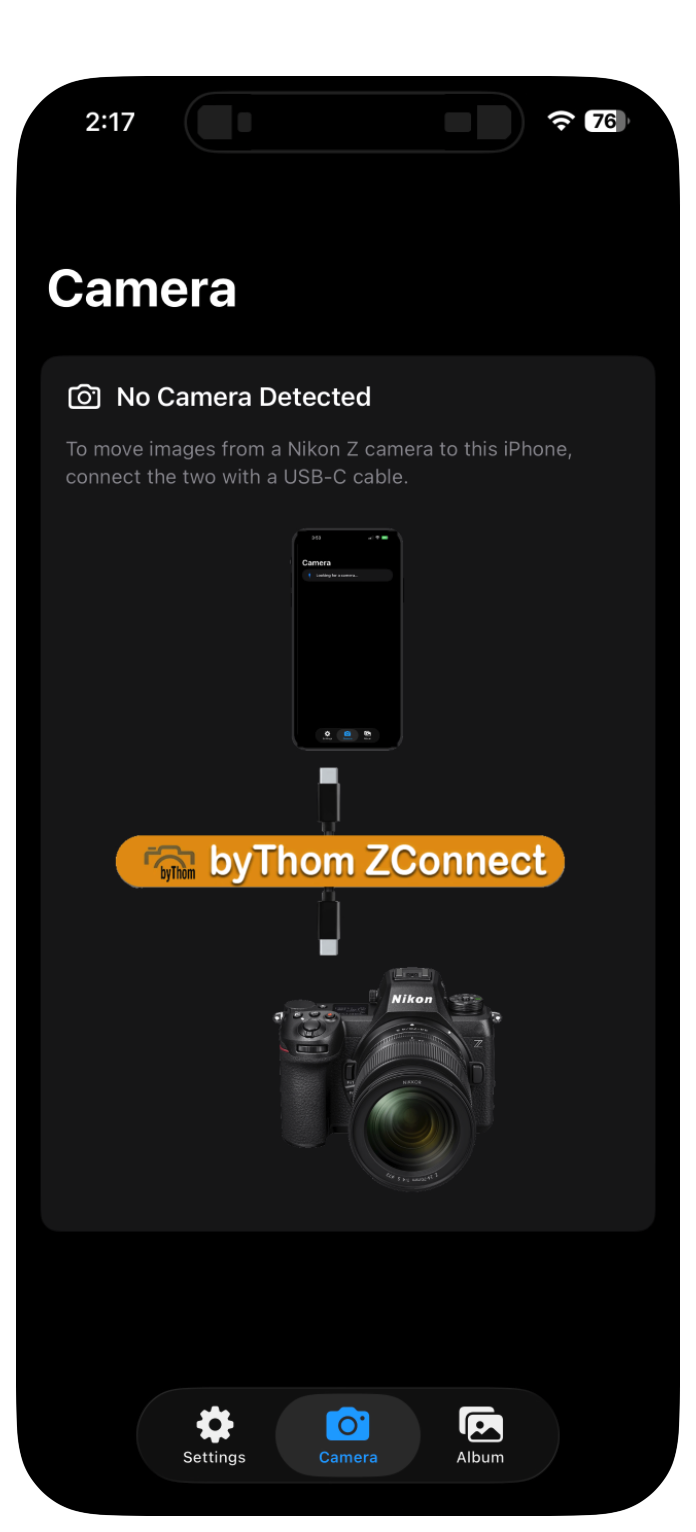
1. Connect

Open byThom ZConnect on your mobile app. Connect your Nikon Z System camera to your mobile device using a USB-C cable. Turn the camera On. The app finds the camera. No menu diving, no complex pairing step.
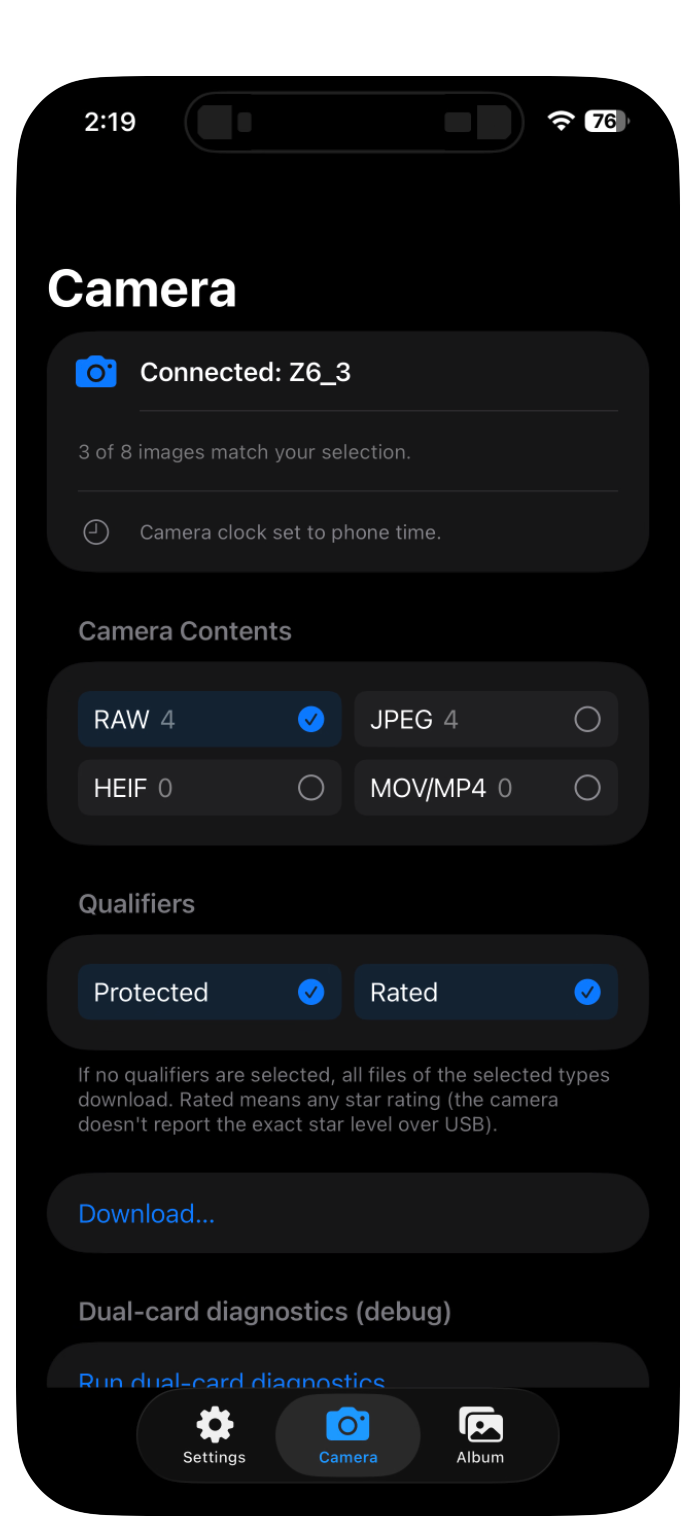
2. Select

byThom ZConnect shows you a summary of what’s on the camera. Pick which files you want to download.
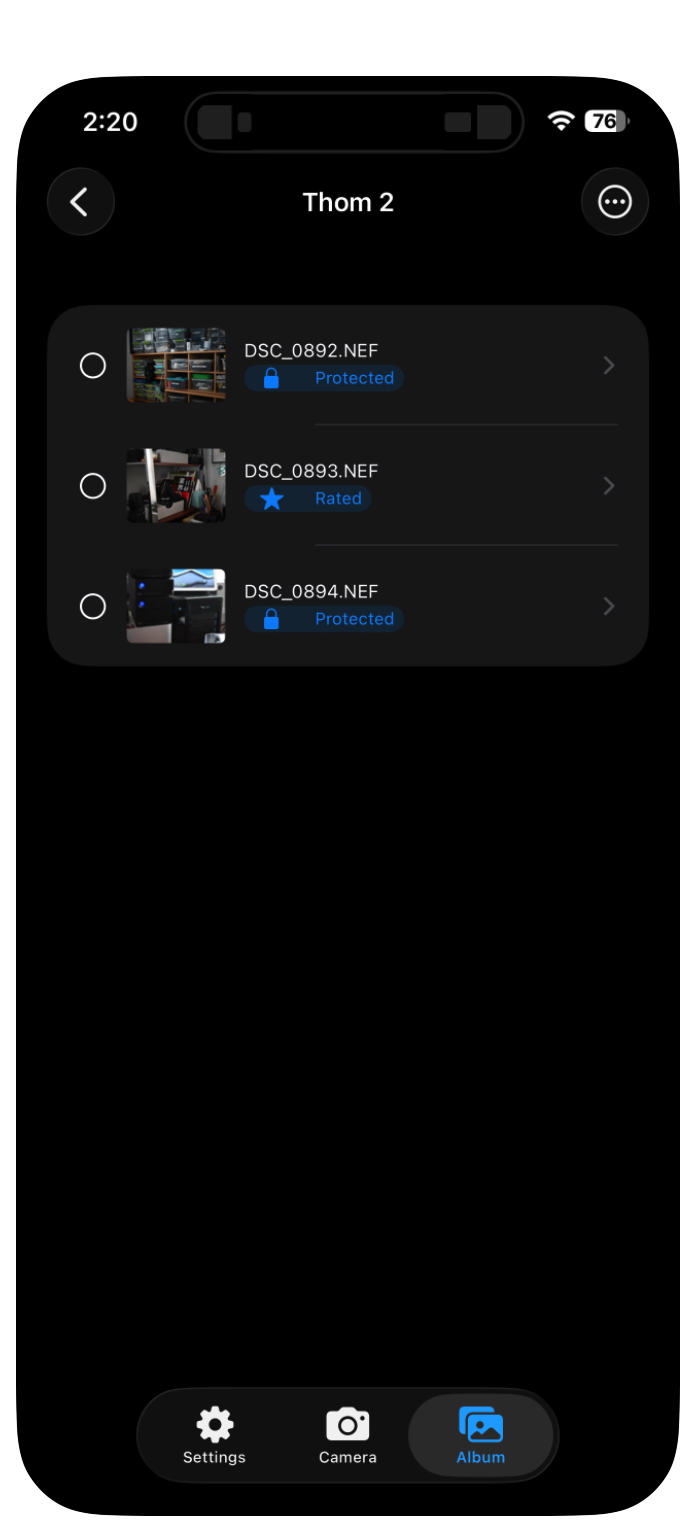
3. Download

Tap the Download button, create a new album or select a pre-existing one, and your images get pulled from the camera to your mobile device, where you can manage them.
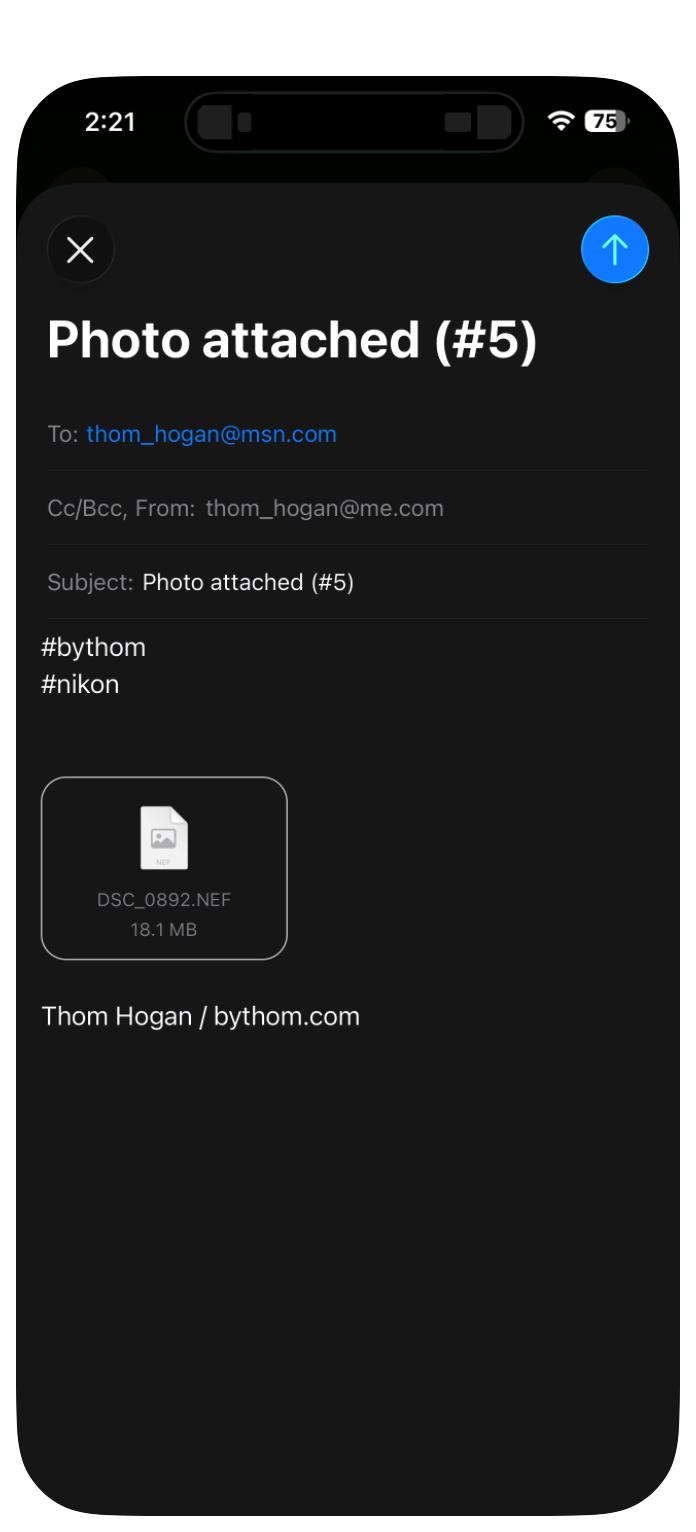
4. Send on

Within the album you downloaded to, you can select one, more, or all images and Send to Photos, Download to Files, directly create emails with the photo attached, directly create a Message with the photo, or use any other Share capability.

Built to do one thing well

ZConnect doesn't try to replace your editing apps. It gets images off your camera and into your workflow with the least friction possible.

Simple

One clear job, one clear interface with helpful hints and explanations on every task. Connect, pick, download, send. No feature maze to get lost in.

Quick

Transfers are tuned for speed, so you can share from the field while the moment is still fresh.

To Photos

Save downloads straight into your Apple Photos library, ready for edits, albums, or posting.

To Files

Drop images into Files for cloud folders, backups, or handoff to your other apps. This is particularly useful for raw files, which require sidecars to support metadata transfers.

Messages and Mail

Send an image to a client, an editor, or family without ever leaving the byThom ZConnect.

Made for Nikon Z

Designed around the Z System's built-in USB-C connections. byThom ZConnect understands the file formats Nikon uses, as well as being able to single images out via Protected or Rating status.

Works with all Z System cameras

byThom ZConnect was written in Swift 6.x with fully modern code and architecture.

FX

All full-frame (FX) Nikon Z bodies: Z5, Z5II, Z6, Z6II, Z6III, Z7, Z7II, Z8, Z9, Zf, ZR

DX

All crop sensor (DX) Nikon Z bodies: Z30, Z50, Z50II, Zfc

iOS

Works on any iPhone or iPad with 26.x or later OS and a USB-C connector

Your Questions, Answered

Which cameras does ZConnect work with?

byThom ZConnect is built for all Nikon Z System cameras. Works with Z5, Z5II, Z6, Z6II, Z6III, Z7, Z7II, Z8, Z9, Zf, ZR, Z30, Z50, Z50II, and Zfc models. The app will be maintained to support future Nikon Z System cameras.

Do I need an Internet connection?

No. Your phone talks directly to the camera via a USB-C cable (Wi-Fi connection is slated for a future version). Cellular or Internet access on your mobile device only matters when you want to send an image onward.

Why did you create this app?

As a sports photographer, there have been times at various stadiums and arenas where Wi-Fi simply isn’t reliable for transferring images. What I built was an app that allowed me to download directly via USB-C cable and then use cellular to send the image onward to my agency or sports director. The original app was dirt simple, but the more I used it, the more I realized that iwith a few modifications it could be generalized in a way that it would be useful for everyone using a Nikon Z camera with a mobile device. It does things that neither Nikon SnapBridge nor NX Air do, and it does so more reliably.

Does byThom ZConnect change my images?

Downloads start as exact copies of what's on your card. Your originals stay on the card, untouched. Note, however, that you can add IPTC information to your JPEG and HEIF images, though, which writes to the EXIF metadata within a file if you’ve chosen this option (raw images will get a sidecar with that information when you save them in Files).

Where do downloaded images go?

Initially, into named albums you manage within byThom ZConnect. Ultimately: wherever you need them. Save to your Photos library, drop them into Files, or send them straight out via Messages or Mail or other Share options. We’ve intentionally tried to allow any workflow that you might want to use once the files are on the mobile device.

Can I download raw (NEF) files?

JPEGs transfer fastest and are what most people want in the field. But yes, both raw files and video files are supported for download.

What size file is transferred?

byThom ZConnect brings in the full file you originally created. However, if you want to output smaller sizes for sharing, that’s built into the process for sending the files; you get four size options when you’re outputting via a sharing method.

How is this different from Nikon's own apps?

byThom ZConnect does one thing: get images from your camera to your phone and onward, in as few taps as possible. No setup wizards, no extra services. If that's all you need, that's all you get (at least in this version; we’ve got a Pro version in the works that adds significant new functionality and features to byThom ZConnect.

Will you keep byThom ZConnect updated?

You bet. We’ve already got a ton of additions and function we’re working on to make it even better. We’ve been listening to our beta testers and compiling their feedback into a plan for making the next version of byThom ZConnect even better.
We’ve gotten so many of these requests that we’ll be splitting the product into the basic version currently available as well as a Pro version with more than a dozen entirely new features. Our goal is to make sure that byThom ZConnect is the best way to connect your Nikon Z System camera to an Apple device (yes, that implies Mac).

How much does it cost?

See the App Store listing just in case there is any sale in effect, but byThom ZConnect lists for US$9.99.

Stop getting frustrated with getting your images off your Z system camera. Get ZConnect.